Google Apps Script Debugging: A Technical Guide to Common Failures
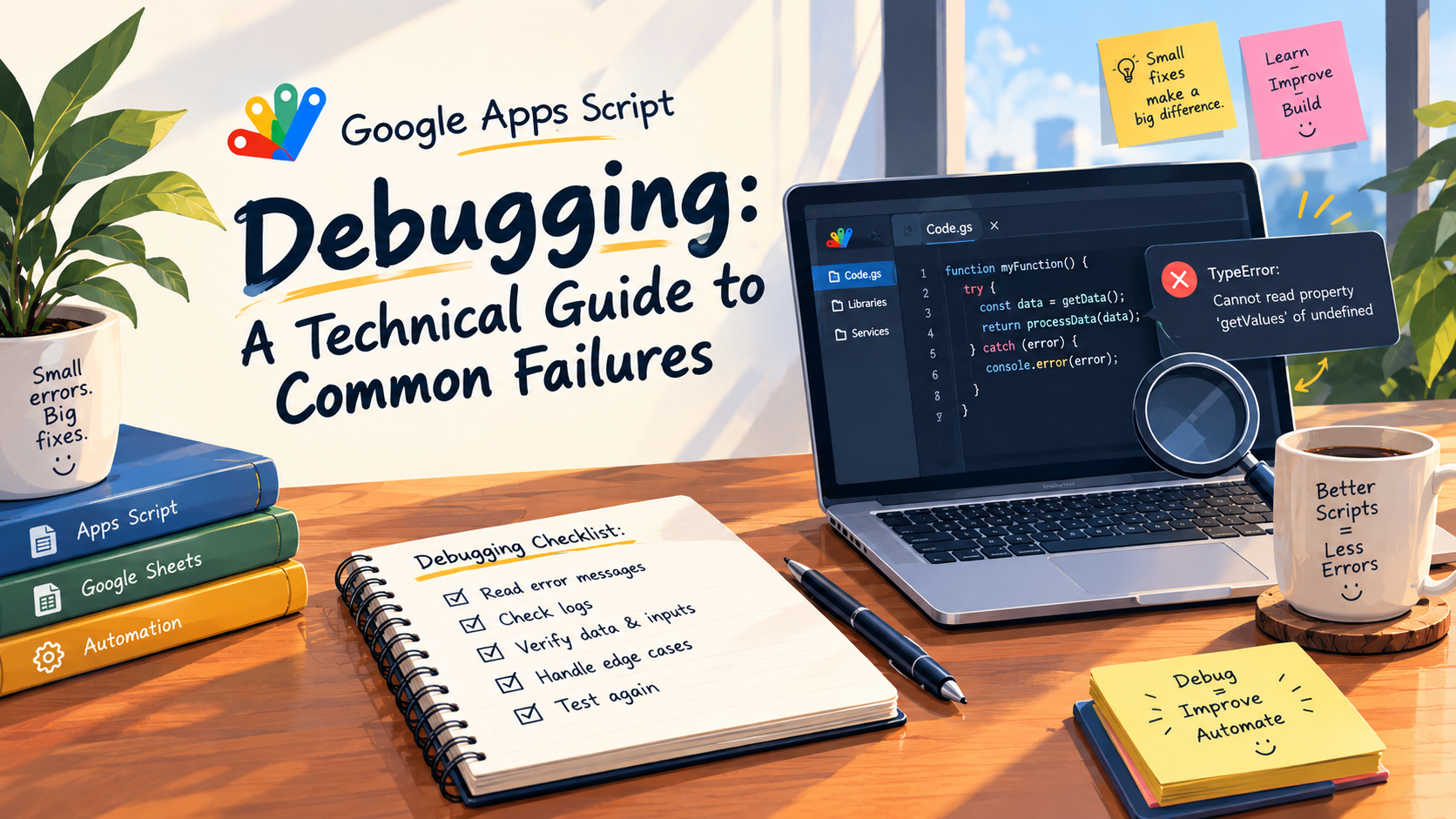
Apps Script errors are rarely as mysterious as they look.
Most failures can be traced to a relatively small set of problems:
invalid assumptions about data
missing resources
authorization
execution context
service quotas
external API behavior
execution time
The difficult part is that these problems can appear similar from the outside.
A trigger may appear "broken" when the real issue is an authorization failure.
A Cannot call method exception may actually be caused by a missing sheet.
A timeout may be caused by thousands of unnecessary Spreadsheet service calls.
This guide walks through the most common failure patterns and a systematic way to debug them.
1. Cannot call method and Null References
Consider this code:
function processTasks() {
  const spreadsheet = SpreadsheetApp.getActiveSpreadsheet();
  const sheet = spreadsheet.getSheetByName("Tasks");

  const values = sheet.getDataRange().getValues();

  // Process values...
}
The obvious assumption is that sheet exists.
But getSheetByName() may return null when the sheet cannot be found.
The actual failure therefore isn't:
sheet.getDataRange()
The underlying problem is:
sheet === null
Add an explicit check:
if (!sheet) {
  throw new Error("Required sheet 'Tasks' was not found.");
}
This makes the failure deterministic and significantly easier to diagnose.
A useful debugging rule is:
When a method call fails, inspect the object immediately before the method.
2. Missing or Incorrect Sheet Names
Sheet lookup is string-based.
That means these names are different:
Tasks
tasks
Tasks
Task
The difference may be visually difficult to notice.
You can inspect the actual spreadsheet structure:
const spreadsheet = SpreadsheetApp.getActiveSpreadsheet();

spreadsheet.getSheets().forEach(sheet => {
  console.log(sheet.getName());
});
This is especially useful when scripts depend on spreadsheets maintained by multiple people.
For larger projects, centralizing important sheet names as constants can also reduce accidental inconsistencies.
3. Authorization Errors
Apps Script can interact with protected Google services.
For example:
GmailApp.sendEmail(...);
DriveApp.getFiles();
CalendarApp.getDefaultCalendar();
A function can therefore be syntactically correct and still fail because the execution doesn't have the required authorization.
When debugging an authorization error, determine:
Which service is being accessed?
Has the script been authorized for that service?
Is the function being run manually or through a trigger?
Which account is executing the operation?
Did a recent code change introduce a new service?
Avoid treating authorization failures as ordinary JavaScript errors.
The code may not be the problem.
4. Trigger-Specific Failures
Triggers introduce execution-context problems that aren't always visible during manual testing.
Consider a function that depends on interactive state:
function processActiveCell() {
  const cell = SpreadsheetApp.getActiveSpreadsheet()
    .getActiveSheet()
    .getActiveCell();

  // ...
}
This may behave differently when invoked automatically.
A trigger does not mean "simulate exactly what happens when the developer clicks Run."
When debugging triggers, inspect:
trigger type
execution account
event object
services being accessed
execution history
assumptions about active UI state
If the function needs information about an event, consider using the trigger event object rather than relying on interactive state.
5. Quota and Service-Call Problems
A script can be logically correct and still fail at scale.
One common pattern is making repeated service calls inside a loop:
rows.forEach((row, index) => {
  sheet.getRange(index + 2, 3).setValue("Processed");
});
The problem isn't the loop itself.
It's that the script repeatedly communicates with the Spreadsheet service.
For larger datasets, a better approach is generally:
Read data
   ↓
Process in JavaScript
   ↓
Write results in batches
The same principle applies to external API calls and other services.
When you see quota-related failures, ask:
How many service operations is this execution actually performing?
6. Unexpected undefined or Empty Values
Spreadsheet data is external input from the perspective of your function.
Don't assume every cell contains the expected value.
For example:
const email = row[2];

console.log(email.toLowerCase());
If email is missing, the second line becomes the actual failure point.
During debugging, inspect the structure:
console.log(JSON.stringify(row));
Then validate values before using them:
if (!email || typeof email !== "string") {
  throw new Error("Invalid email value.");
}
Defensive validation becomes increasingly important as the number of people editing the spreadsheet increases.
7. External API Response Errors
External APIs introduce variables you don't control.
Your code may expect:
{
  "success": true,
  "data": []
}
but receive:
{
  "error": "Invalid API key"
}
If you immediately access response.data, you may create a secondary error that hides the original problem.
Inspect the HTTP response first:
const response = UrlFetchApp.fetch(url, {
  muteHttpExceptions: true
});

const status = response.getResponseCode();
const body = response.getContentText();

console.log(`HTTP status: ${status}`);
console.log(body);
Then parse and validate the response.
A useful API debugging sequence is:
HTTP status
     ↓
Raw response
     ↓
JSON parsing
     ↓
Expected properties
     ↓
Application logic
Don't jump directly to the final object property.
8. Execution Timeouts
Timeouts often indicate that an automation has outgrown its original implementation.
Common causes include:
repeated spreadsheet reads
repeated spreadsheet writes
unnecessary API requests
processing huge ranges
nested loops
processing unchanged records
repeated calculations
Instead of immediately optimizing everything, identify where the execution spends its time.
For example, if a script repeatedly calls:
sheet.getRange(...).getValue();
inside a large loop, consider reading the required range once and processing the values in memory.
The general pattern is:
Service calls are expensive
        ↓
Minimize them
        ↓
Process data locally
        ↓
Write results efficiently
9. Logging and Execution Evidence
Debugging without evidence quickly becomes guesswork.
Use logs to establish what actually happened.
For example:
console.log("Starting process");

console.log(`Rows found: ${rows.length}`);

console.log(`Processing customer: ${customerId}`);

console.log(`API status: ${response.getResponseCode()}`);

console.log("Process completed");
Good logging creates an execution timeline.
Starting process
↓
Found 500 records
↓
Processing records
↓
API request
↓
HTTP 401
↓
Execution stopped
That is much more useful than simply knowing that the function threw an exception.
Avoid permanently logging sensitive information, credentials, tokens, or unnecessary personal data.
10. Reproducing the Failure
The final step is often the most important.
Suppose your automation processes 25,000 rows.
Don't begin debugging with all 25,000 rows.
Create a smaller reproduction case.
For example:
25,000 rows
      ↓
100 rows
      ↓
10 rows
      ↓
1 failing record
Likewise, if an integration uses several APIs, isolate one request.
If a trigger is failing, isolate the underlying business logic.
The smaller the reproduction case, the fewer variables you need to reason about.
A Practical Debugging Workflow
When an Apps Script execution fails, I generally use this sequence:
        Error
          ↓
 Read exact message
          ↓
 Find failing operation
          ↓
 Inspect input values
          ↓
 Check execution context
          ↓
 Reproduce with smaller data
          ↓
 Identify root cause
          ↓
 Make one change
          ↓
 Run again
The "make one change" step is important.
If you modify five things simultaneously and the error disappears, you haven't necessarily learned what caused it.
Where AI Debugging Helps
AI can be useful during debugging, but the quality of the output depends heavily on the context provided.
A useful debugging prompt should include at least:
Error message
Provide the exact exception rather than paraphrasing it.
Function
Show the function that produced the error.
Relevant code
Include dependencies or helper functions when they affect the behavior.
Expected behavior
Explain what the automation should do.
Actual behavior
Explain what happens instead.
For example:
Error:
Cannot read properties of null

Function:
processFormSubmission(e)

Expected:
Update the Status column after a form submission.

Actual:
The trigger executes, but the Status column isn't updated.

Relevant code:
[function here]

Sheet structure:
[columns here]
This gives an AI system enough information to reason about the failure instead of guessing.
AI can then help with:
interpreting exceptions
finding suspicious assumptions
explaining unfamiliar code
suggesting debugging steps
proposing defensive checks
generating a potential fix
The developer should still verify the diagnosis and test the resulting code.
Fixing Apps Script Errors With AI Assistance
There's also a practical distinction between using AI in a separate chatbot and having assistance available while working on the Apps Script project.
For example, Google Apps Script Copilot includes Fix with GS Copilot, which is designed to work from an execution error in context and help apply a potential fix.
For debugging, that workflow is more interesting than simply asking an AI to generate a new script.
The useful loop becomes:
Execution error
      ↓
Understand the problem
      ↓
Propose a fix
      ↓
Review the change
      ↓
Run the script
      ↓
Inspect the result
The AI can shorten the investigation, but it doesn't remove the need for testing.
Final Checklist
When an Apps Script suddenly stops working, check these before rewriting the entire function:
Is the referenced sheet actually present?
Could an object be
nullorundefined?Did the script request a new authorization scope?
Is the failure happening only through a trigger?
Are service quotas being exceeded?
Is the input data different from what the code expects?
Did an external API return an error?
Is the execution taking too long?
Do the logs show where execution stopped?
Can you reproduce the failure with a smaller dataset?
Most Apps Script debugging problems become much easier once you stop treating the error as a mystery and start treating it as evidence.
Find the broken assumption, reproduce the failure, make one change, and test again.