10 Practical Google Apps Script Automations for Developers
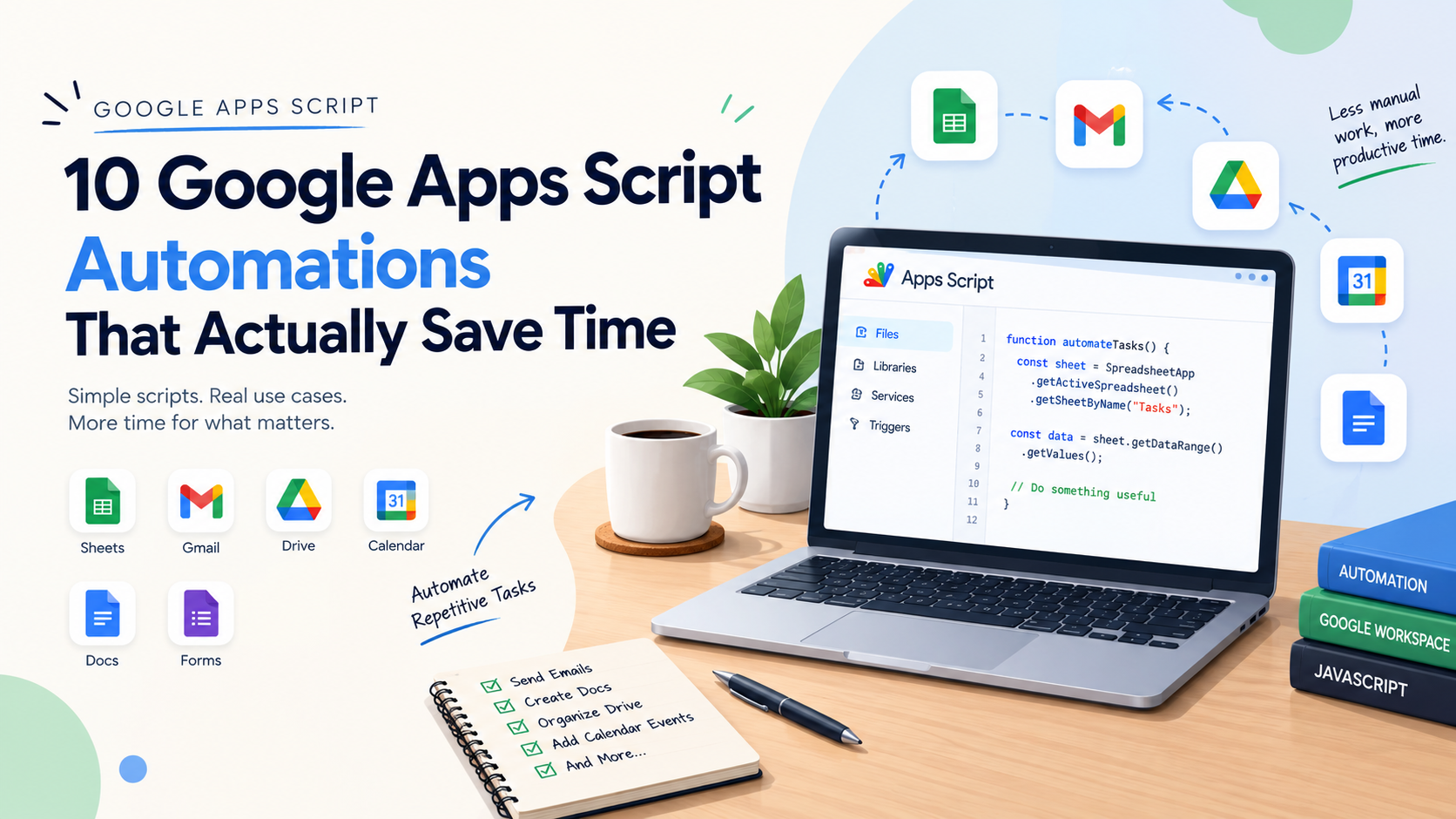
Google Apps Script is essentially JavaScript with direct access to many Google Workspace services.
That makes it particularly useful for automating workflows around:
Google Sheets
Gmail
Google Drive
Google Docs
Google Calendar
Google Forms
External APIs
The barrier to getting started is low, but Apps Script becomes considerably more useful once you start combining these services.
Here are 10 automation patterns worth knowing.
1. Send emails based on spreadsheet data
A common Apps Script pattern is using Sheets as a lightweight data source.
For example:
Name | Email | Status
John | john@example.com | Pending
Jane | jane@example.com | Pending
The script can read those rows and send messages programmatically.
function sendEmails() {
  const sheet = SpreadsheetApp.getActiveSheet();
  const rows = sheet.getDataRange().getValues();

  rows.slice(1).forEach(row => {
    const name = row[0];
    const email = row[1];

    GmailApp.sendEmail(
      email,
      "Your update",
      `Hello ${name}, here is your update.`
    );
  });
}
For production workflows, you would normally add validation, processing status, logging, and error handling.
The important pattern is:
Sheet data → Apps Script → Gmail
2. Generate Google Docs from structured data
Apps Script can read spreadsheet records and create Google Docs automatically.
This is useful when each record needs its own document.
Typical examples include:
invoices
certificates
reports
agreements
personalized summaries
A template-based approach can make this even more useful.
3. Automate Google Drive organization
Drive automation is another practical use case.
Apps Script can work with files and folders to:
search for files
create folders
rename files
move files
inspect file metadata
For example, you could create a workflow that moves monthly reports into the appropriate folder based on a naming convention.
4. Create Calendar events from Sheets
Sheets can act as the input layer for a scheduling workflow.
Consider:
Event | Date | Start Time | End Time
Apps Script can read those values and create Calendar events.
The architecture is simple:
Google Sheets
      ↓
Apps Script
      ↓
Google Calendar
This pattern can be extended with descriptions, attendees, reminders, and other event properties.
5. Build reusable data-cleaning functions
Spreadsheet data often needs normalization before it can be reliably processed.
A cleanup script can handle:
whitespace
capitalization
date formatting
missing values
inconsistent strings
Rather than manually fixing the same problems repeatedly, make the transformation deterministic and reusable.
6. Run reports with time-driven triggers
Triggers allow Apps Script functions to execute automatically.
For example:
Daily trigger
     ↓
Read spreadsheet
     ↓
Process data
     ↓
Generate report
     ↓
Send email
This turns a script from something a developer runs manually into an automated workflow.
7. Process Google Form submissions
Forms provide another convenient event-driven workflow.
A submission can initiate several actions:
Form submission
       ↓
Apps Script trigger
       ↓
Read response
   ↙    ↓     ↘
Email  Sheet  Document
For internal workflows, this can eliminate a large amount of manual processing.
8. Build lightweight web applications
Apps Script can also serve HTML and JavaScript to create simple web applications.
That means you don't necessarily need users to interact directly with the spreadsheet.
A small internal tool could provide:
forms
dashboards
search interfaces
data-entry screens
simple administrative panels
9. Integrate external APIs
Apps Script isn't restricted to Google services.
Using HTTP requests, scripts can communicate with external APIs.
A workflow could look like:
Google Sheets
      ↓
Apps Script
      ↓
External API
      ↓
Process response
      ↓
Google Sheets
When building these integrations, error handling, authentication, rate limits, and response validation become important considerations.
10. Create custom spreadsheet functions
Apps Script allows developers to expose custom functions to spreadsheet users.
For example:
function DOUBLE_VALUE(value) {
  return value * 2;
}
Users can then write:
=DOUBLE_VALUE(A2)
The real value comes when the function encapsulates logic that would otherwise require complicated formulas or repeated manual processing.
Where Apps Script Projects Become Difficult
The first few automations can feel almost too easy.
Then the project grows.
You add triggers.
Then API calls.
Then multiple spreadsheets.
Then error handling.
Then more users.
Eventually, the challenge isn't simply writing JavaScript.
It's understanding how all the pieces interact.
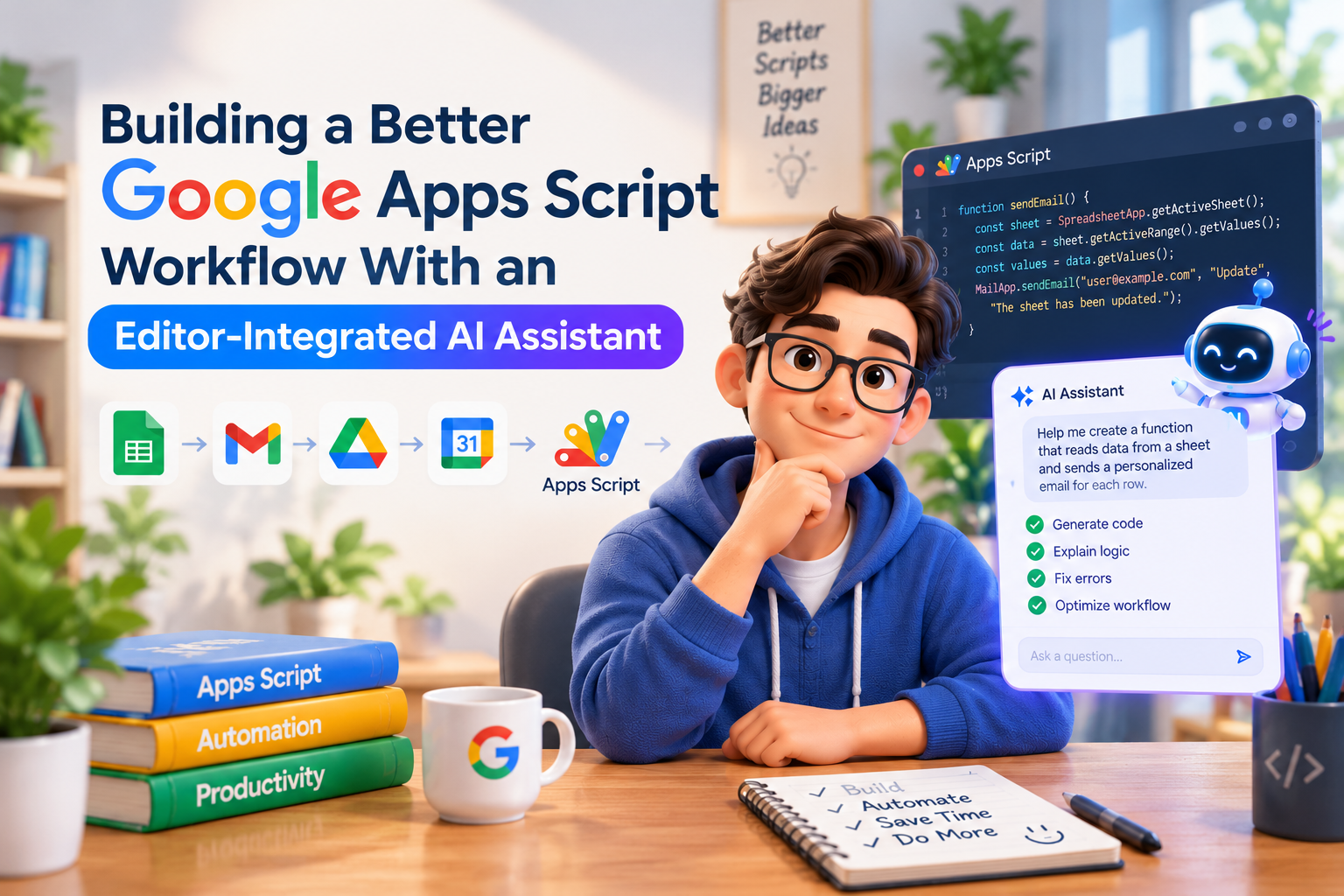
This is one area where AI-assisted development can be useful.
Instead of treating AI as a system that should generate an entire project, developers can use it for focused tasks:
Explain this function.

Why isn't this trigger running?

Add error handling to this API request.

Refactor this repetitive code.

How can this loop be made more efficient?

What happens if this sheet contains 50,000 rows?
For this kind of editor-focused workflow, Google Apps Script Copilot provides an AI coding assistant built specifically around Google Apps Script development.
The benefit is less about blindly generating an entire project and more about shortening the feedback loop between problem → explanation → change → test.
As with any AI-generated code, developers should still review and test the resulting changes, particularly when scripts handle data, permissions, email, or external APIs.
The Bigger Lesson
Google Apps Script doesn't have to replace a full software stack to be useful.
Sometimes the best automation is simply:
one spreadsheet + one script + one trigger.
Start with a repetitive task.
Automate it.
Measure whether it actually saves time.
Then improve the workflow as the requirements grow.
And when the code becomes harder to understand, AI assistance can help reduce the friction without giving up control of the system.
The goal isn't to automate everything. It's to eliminate the work that doesn't need to be done manually.